
Microsoft Entra ID — setup manual
How to register this console in Microsoft Entra ID so your directory accounts can sign in with Microsoft. Everything below is done once, by a directory administrator. This page works offline.
sample@email.com. That user's console permissions then apply. An unmatched
Microsoft account is refused with a clear message. The Entra App Roles in steps 3 and 6 control who may
reach the console at all via Entra; they do not set the console permission level.
0What must reach what
A frequent objection is “our instance sits in a private network with no inbound access”. That is fine. Entra ID never connects to this application. Sign-in is a browser redirect; the only server-to-server call is outbound from here to Microsoft.
  (1) browser  ---------------->  this console          user opens the sign-in page
  (2) console  --- 302 ------->   browser               "go to login.microsoftonline.com"
  (3) browser  ---------------->  Entra ID              password / MFA / Conditional Access
  (4) Entra    --- 302 -------->  browser  ---------->  this console  /signin-oidc
  (5) console  === HTTPS OUT ==>  Entra token endpoint  redeem the code        [outbound]
  (6) console  === HTTPS OUT ==>  Entra JWKS            validate the signature [outbound]
| Path | Required? |
|---|---|
| Entra ID → this console (inbound from Microsoft) | Never happens |
| Public internet → this console | Not required |
| Your users’ browsers → this console | Required (already true, or nobody could use it) |
This console → login.microsoftonline.com on 443 | Required (outbound only) |
Egress allow-list: login.microsoftonline.com, login.microsoft.com,
aadcdn.msftauth.net. Nothing else. Group provisioning (SCIM) and back-channel logout would
need inbound access — this console deliberately uses neither.
1Register the application
Entra admin center → App registrations → New registration.
| Name | e.g. CloudBasix Console (shown on the consent prompt) |
|---|---|
| Supported account types | Single tenant — accounts in this organisational directory only |
| Redirect URI | platform Web, value in step 2 |
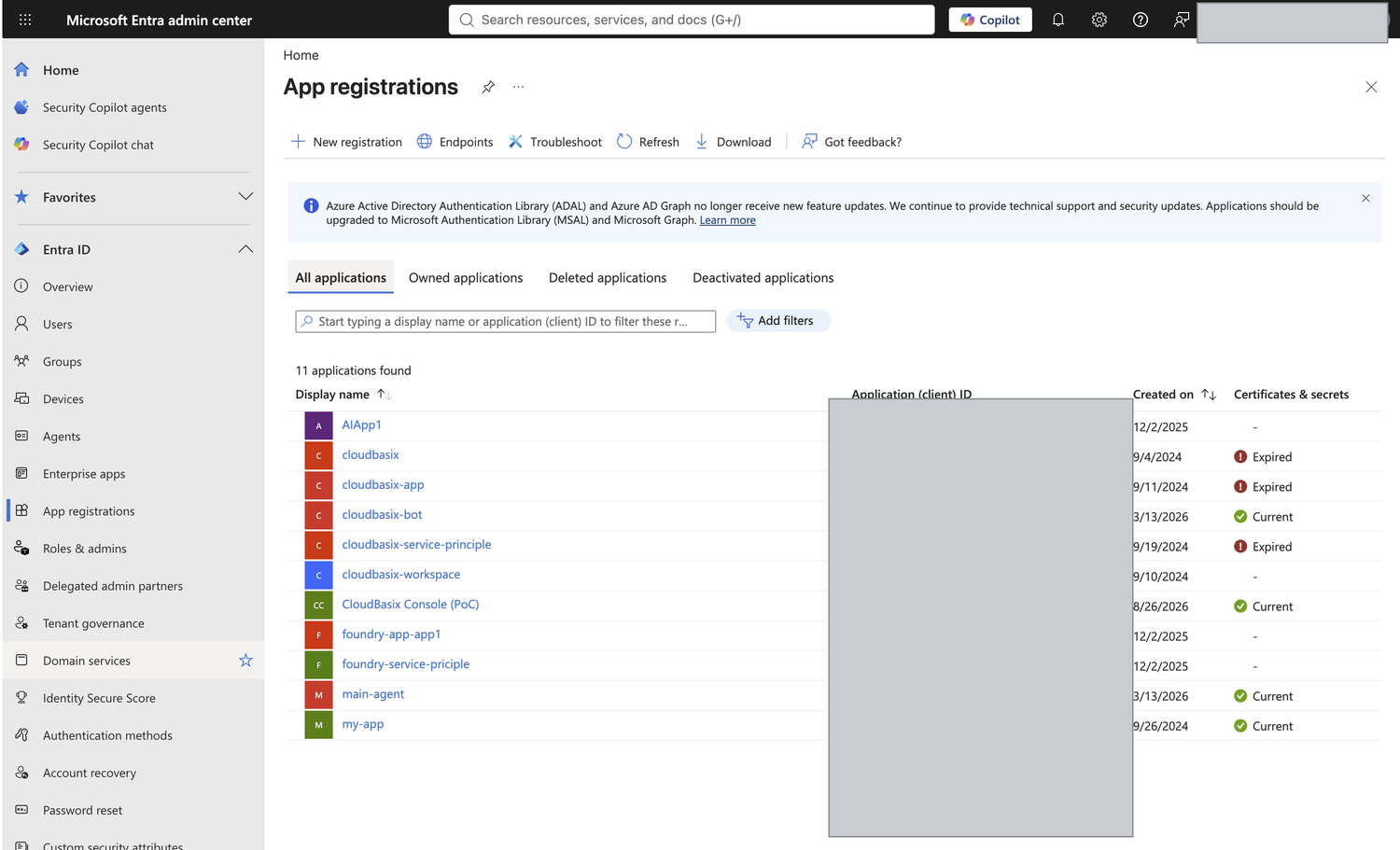
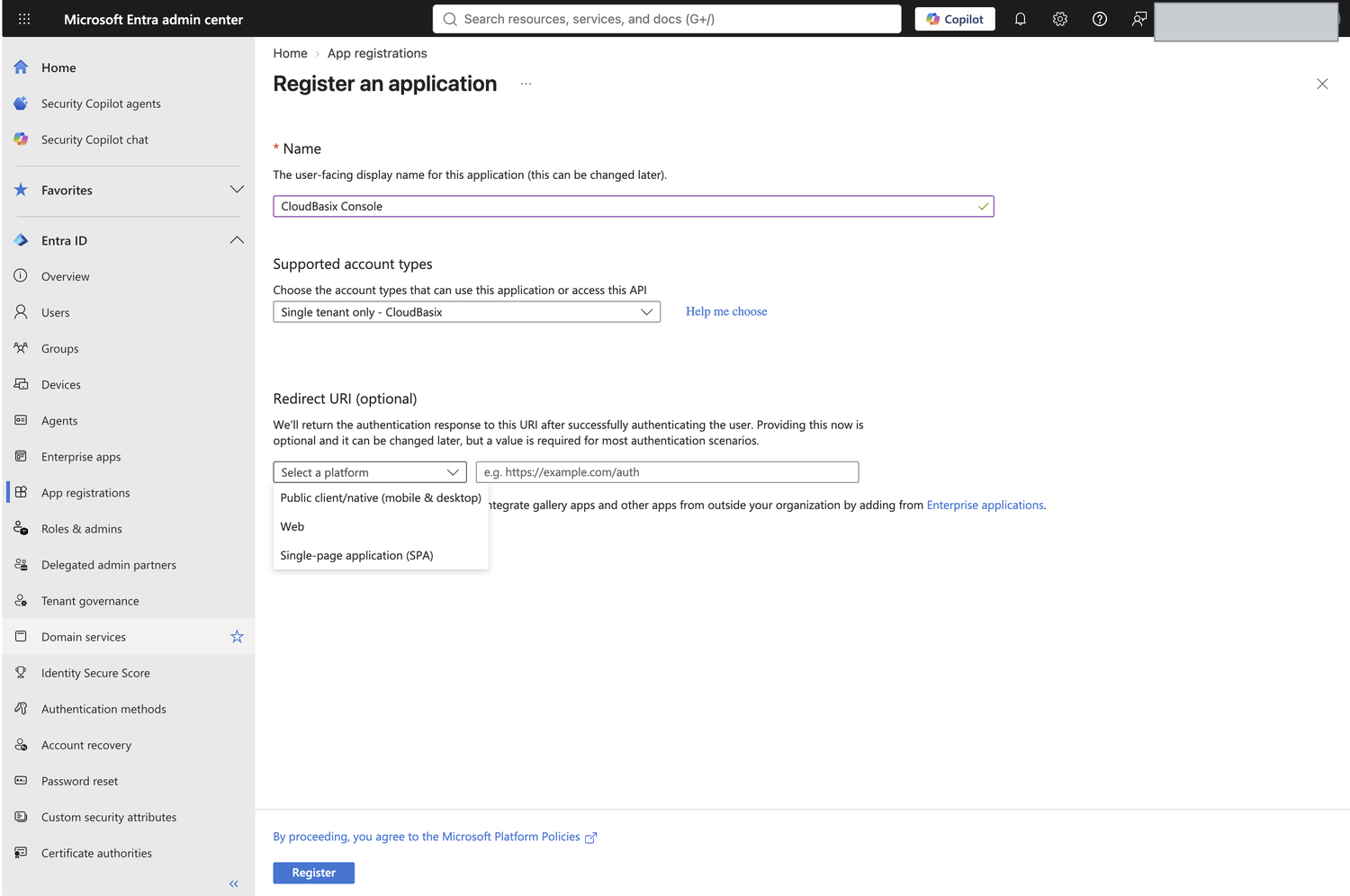
AADSTS650057 at sign-in.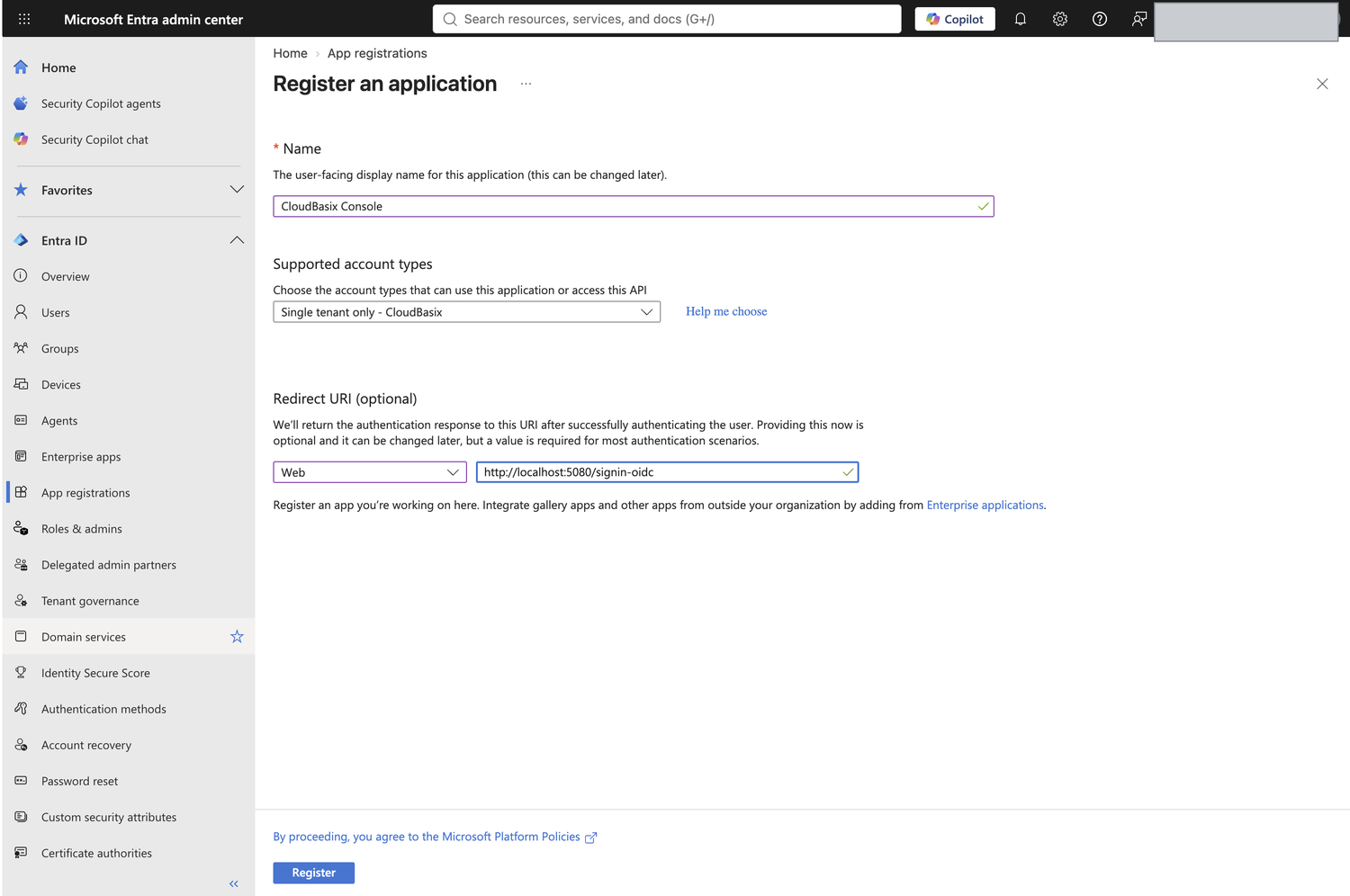
Afterwards copy the Application (client) ID and Directory (tenant) ID from the Overview page.
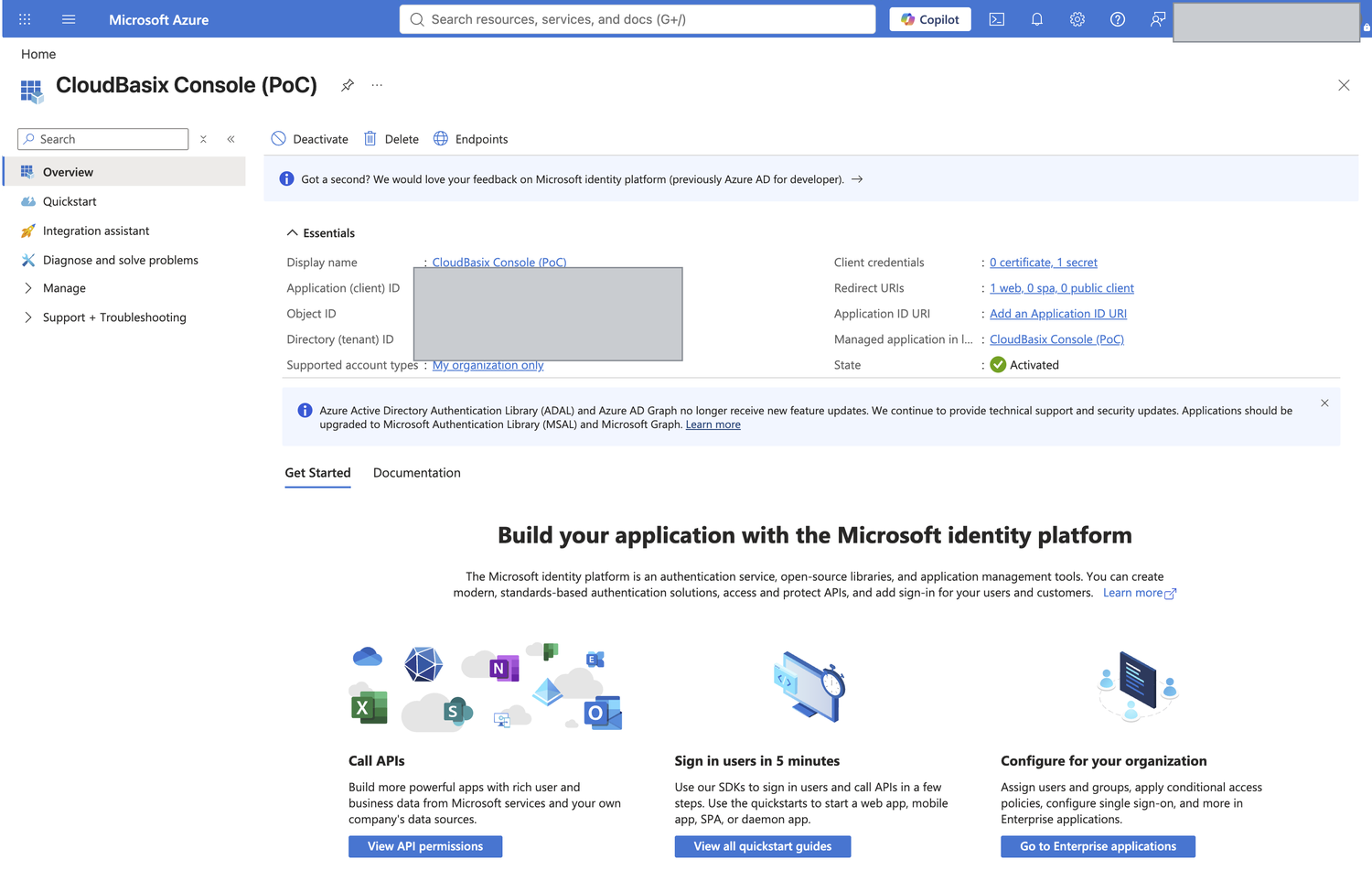
AADSTS700016, which reads as
“application not found” and sends you looking for the wrong problem.2Redirect & logout URLs
Entra matches these character for character — scheme, host, port, path, trailing slash. These are the exact values for this instance:
https://dynamind.ai/signin-oidcUnder Authentication, set the front-channel logout URL:
https://dynamind.ai/signout-callback-oidc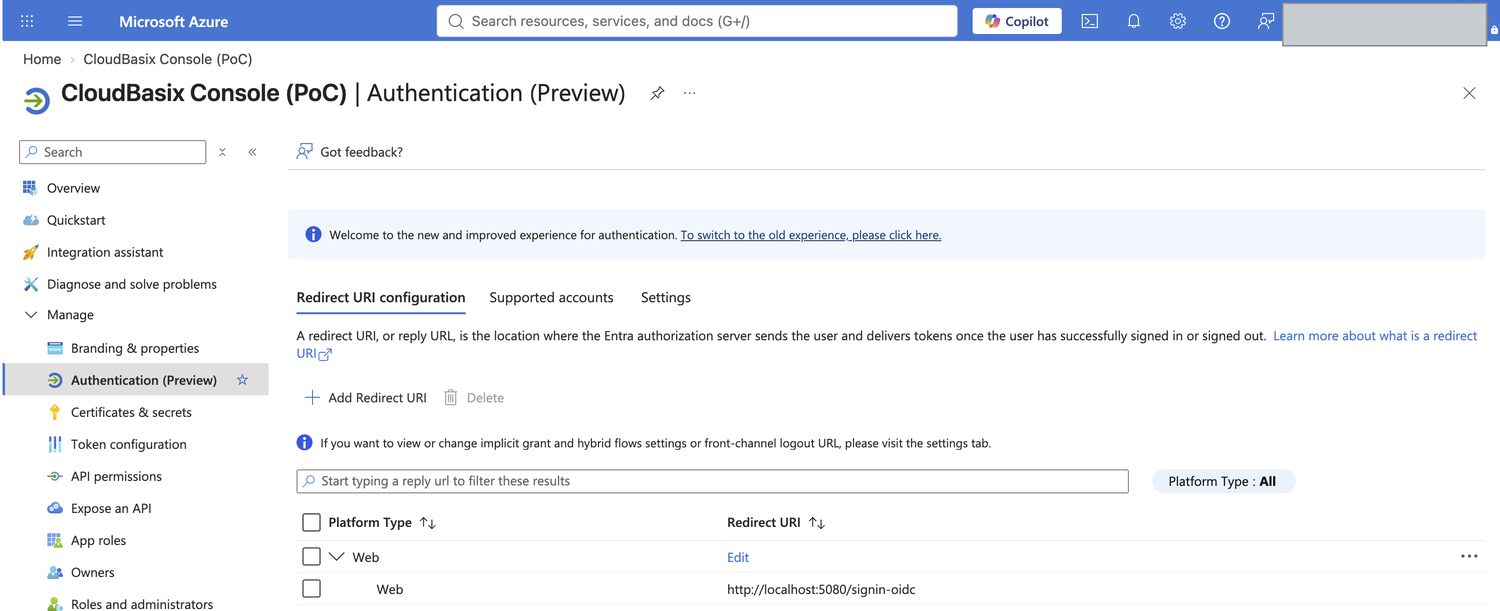
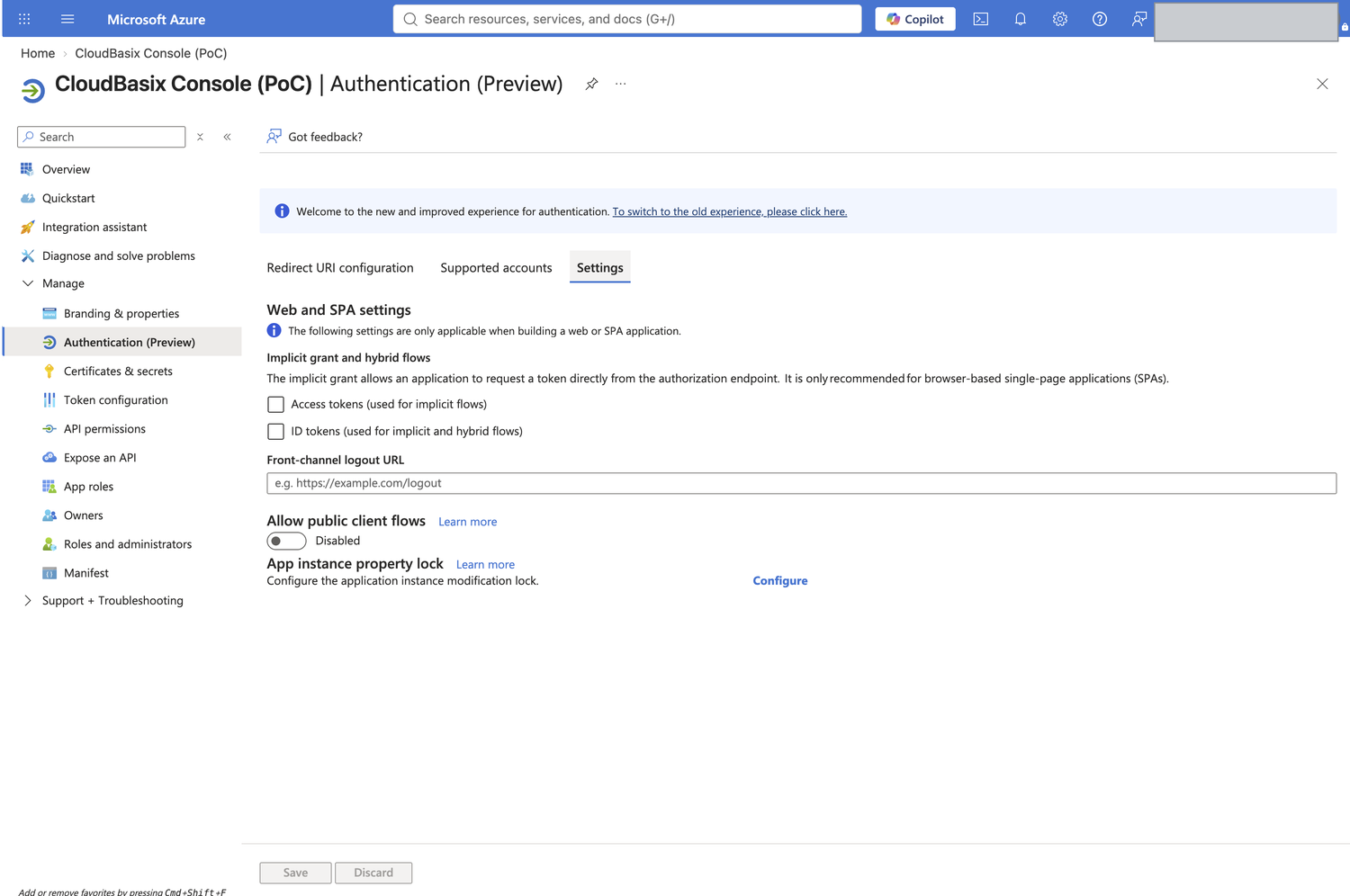
- Leave every implicit grant checkbox unticked — this console uses Authorization Code + PKCE.
https://is required in production (http://localhostis the only exception Entra allows). The console enforces this itself: a Microsoft sign-in started over plain HTTP is upgraded to HTTPS first.- The URL only has to resolve for your users’ browsers. An internal-only hostname is fine; Entra never resolves or probes it.
3Create the App Roles
App Roles let Entra gate who may sign in (with step 5’s “assignment required”) and label assignments meaningfully. Their values are plain strings, identical in every tenant.
Create them individually under App roles, or paste this into Manifest
(replace the "appRoles": [] line) and save — one action instead of three forms:
"appRoles": [
  {
    "allowedMemberTypes": [ "User" ],
    "description": "Full control of the console.",
    "displayName": "Administrator",
    "id": "1f4d4d3a-2f7a-4a2e-9a5c-1c9a9d4e0001",
    "isEnabled": true,
    "value": "Administrator"
  },
  {
    "allowedMemberTypes": [ "User" ],
    "description": "Standard non-administrator user.",
    "displayName": "User",
    "id": "1f4d4d3a-2f7a-4a2e-9a5c-1c9a9d4e0002",
    "isEnabled": true,
    "value": "User"
  },
  {
    "allowedMemberTypes": [ "User" ],
    "description": "Read-only access.",
    "displayName": "Read only",
    "id": "1f4d4d3a-2f7a-4a2e-9a5c-1c9a9d4e0003",
    "isEnabled": true,
    "value": "ReadOnly"
  }
]
Copy the JSON above to the clipboard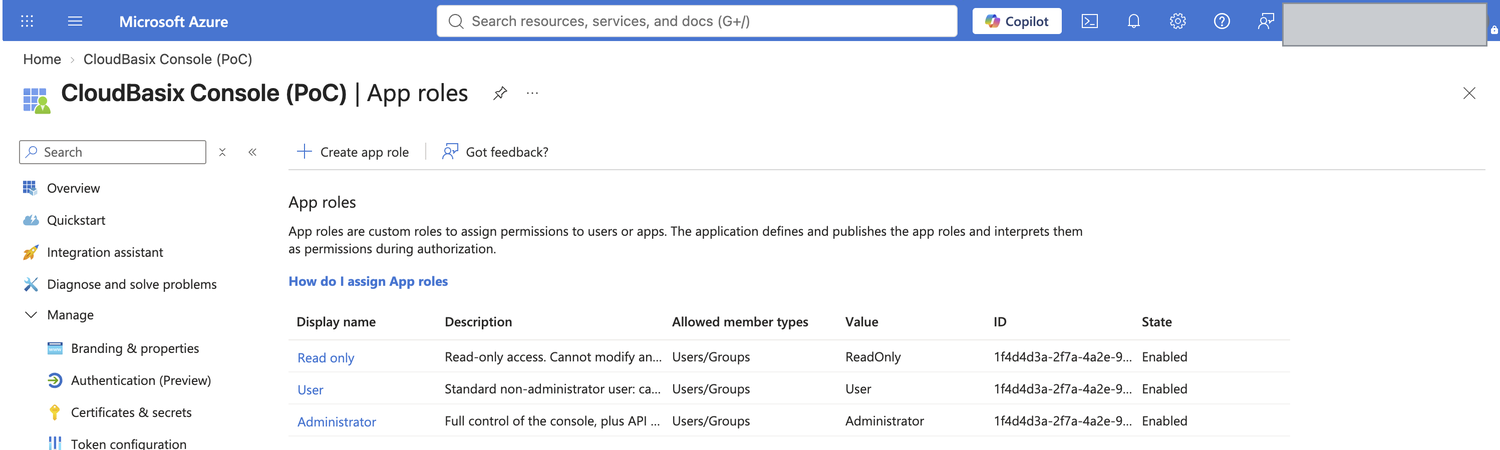
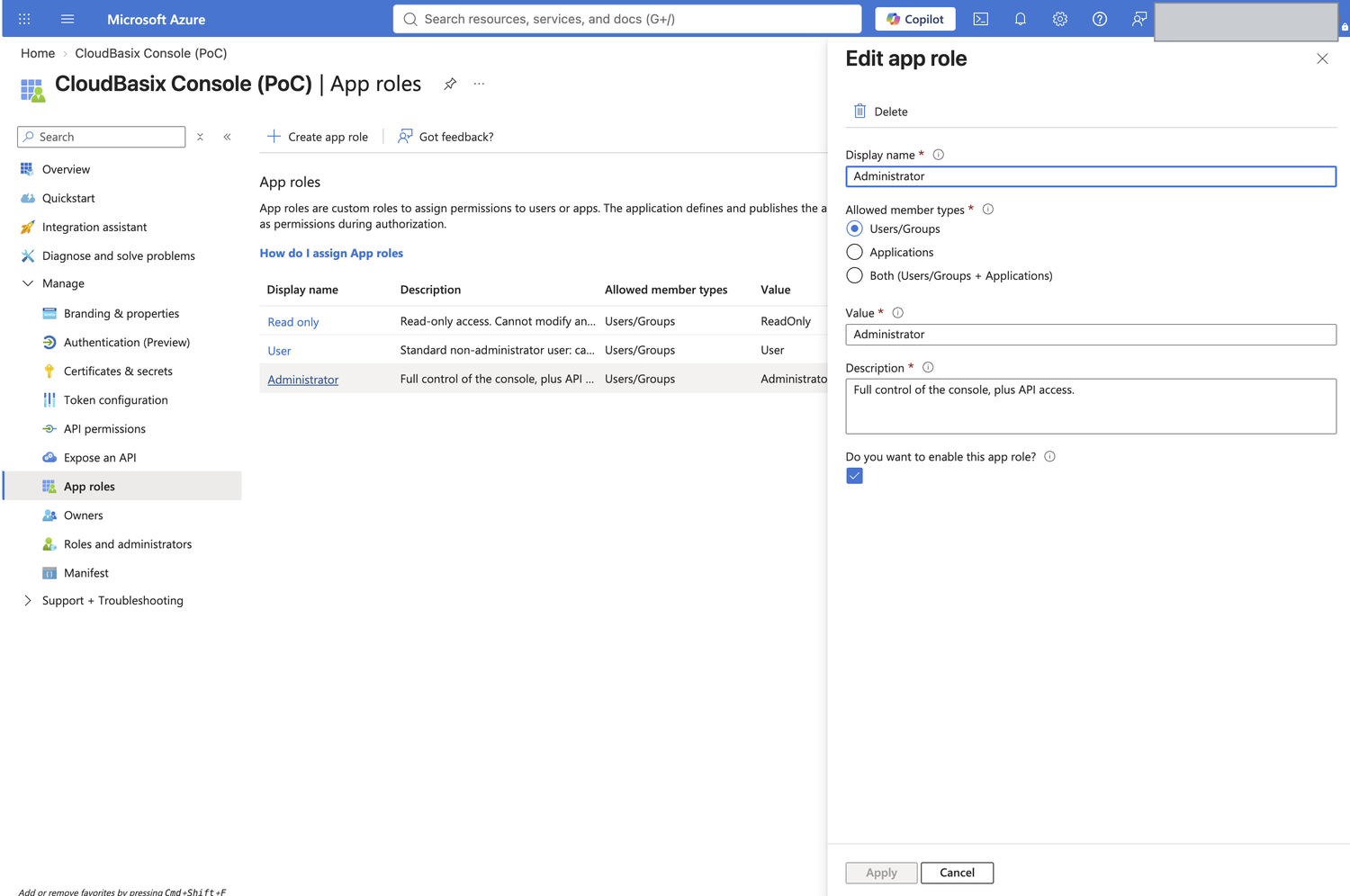
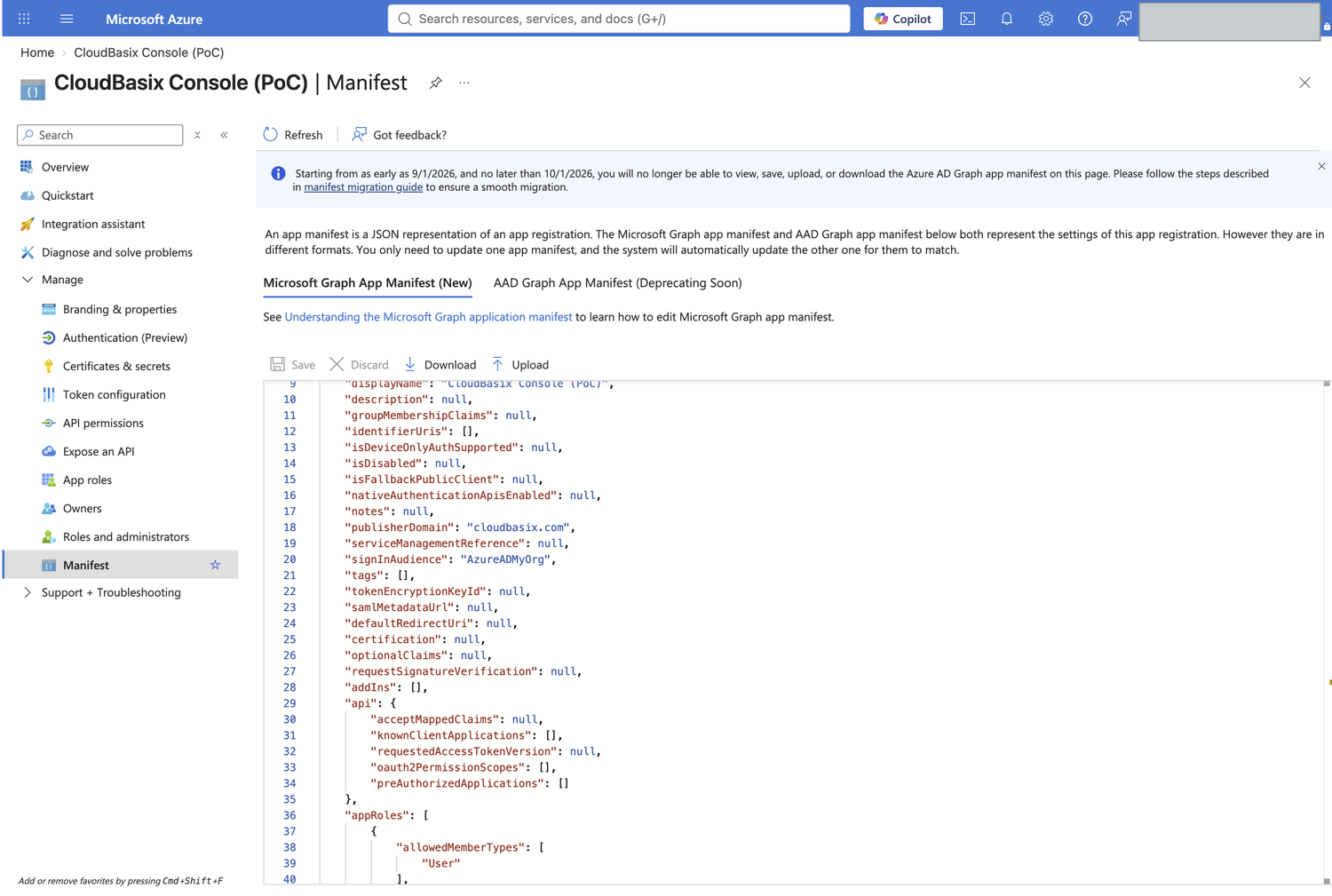
The id values are arbitrary but must be unique GUIDs within the application.
Keep the ones above and every deployment stays consistent.
4Create a client secret
Certificates & secrets → Client secrets → New client secret. Choose an expiry your rotation process can meet.
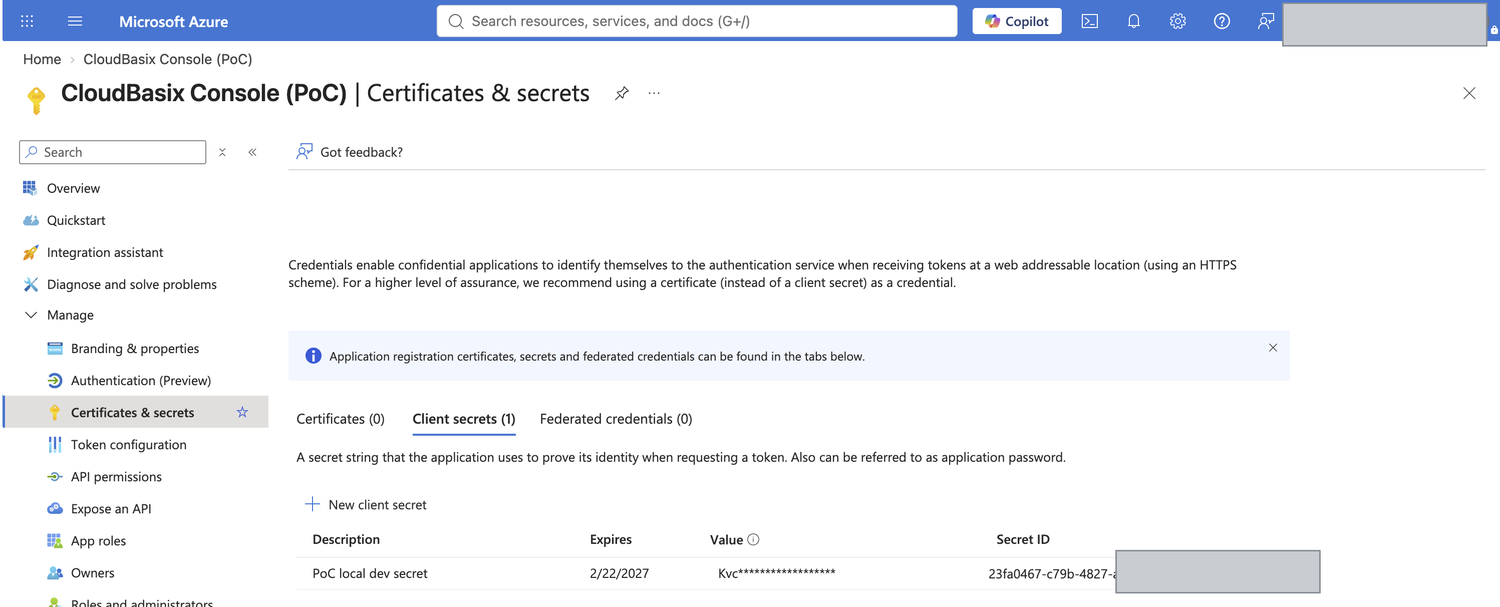
Store it outside source control: an environment variable, a secrets manager, or a file with restricted permissions. Never commit it.
5Require assignment
Enterprise applications → your app → Properties:
| Assignment required? | Yes — only explicitly assigned accounts may sign in |
|---|---|
| Visible to users? | Yes to publish a tile in the users’ My Apps portal |
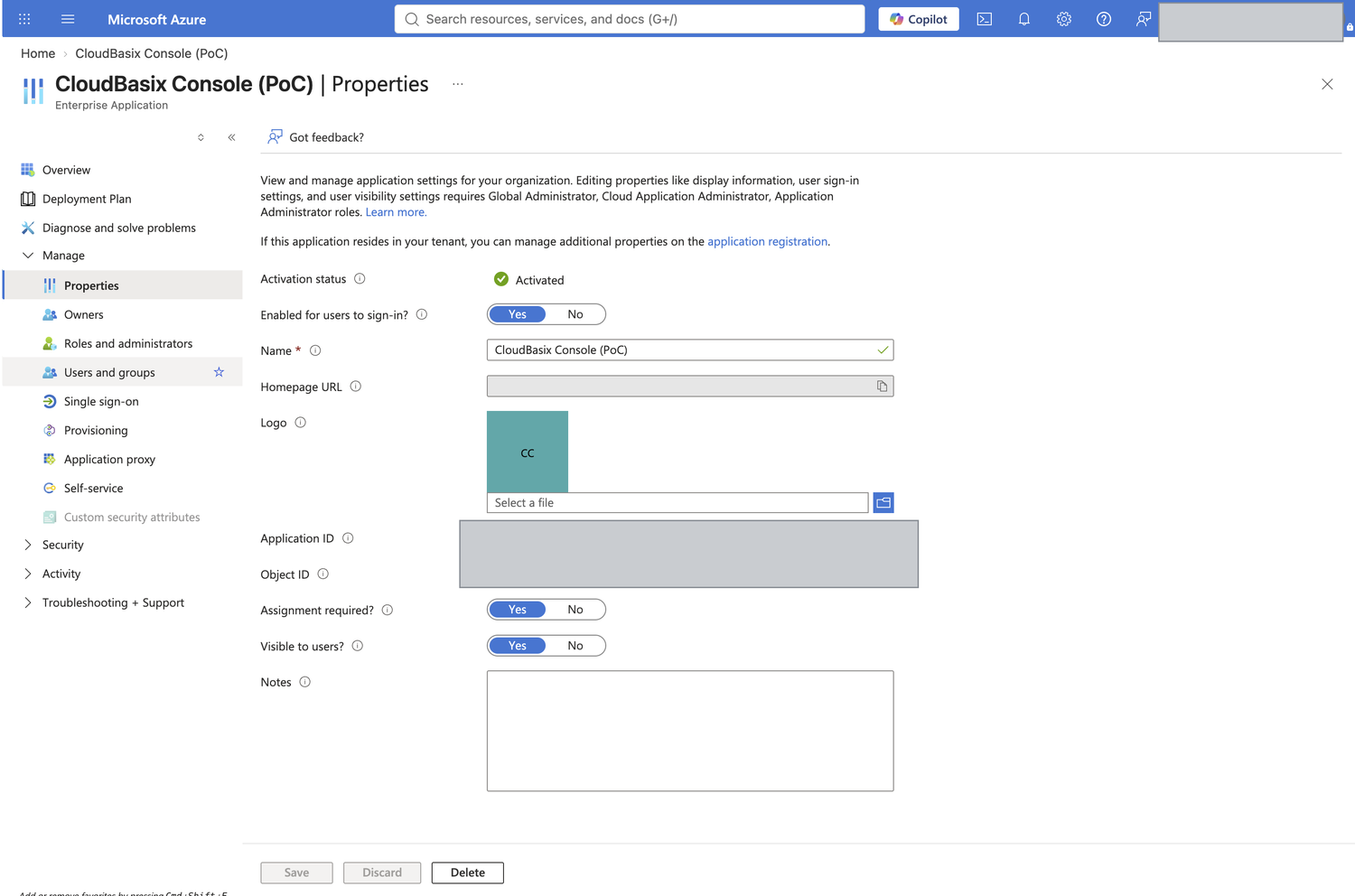
6Assign people
Enterprise applications → your app → Users and groups → Add user/group: pick the account, then pick a role.
- Every assigned account also needs an active console user whose username equals the account’s
UPN (e.g.
sample@email.com) — create it under Users in the console if it does not exist yet. - Guest (B2B) accounts: the UPN in the token is the guest form, e.g.
name_theirdomain.com#EXT#@yourtenant.onmicrosoft.com— the console username must match that string, not the guest’s home address. - Assignment changes take effect on the account’s next sign-in.
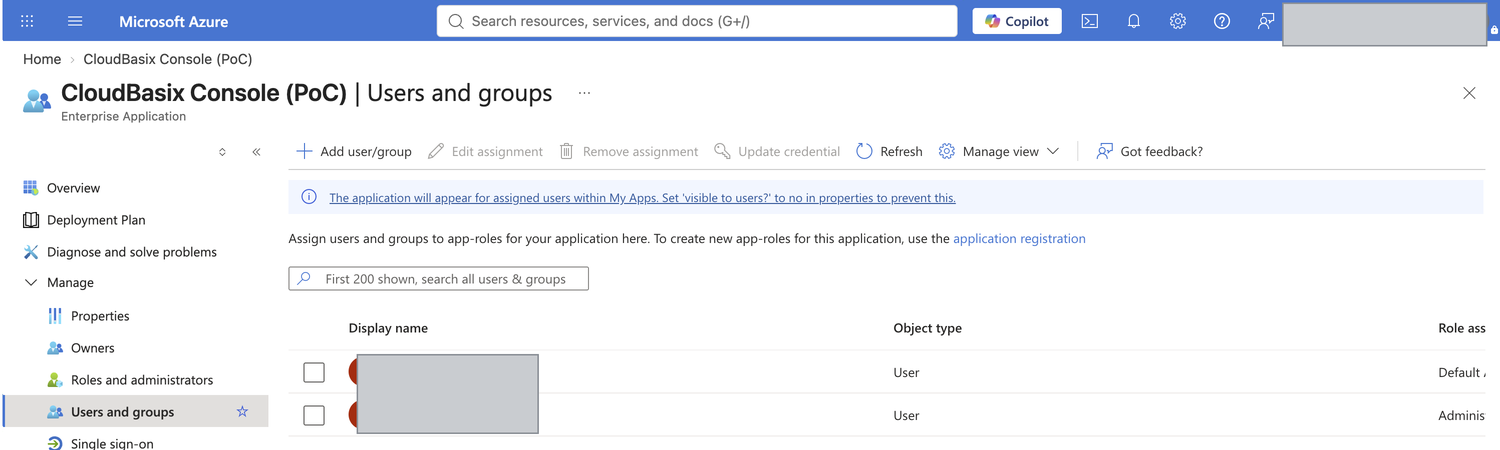

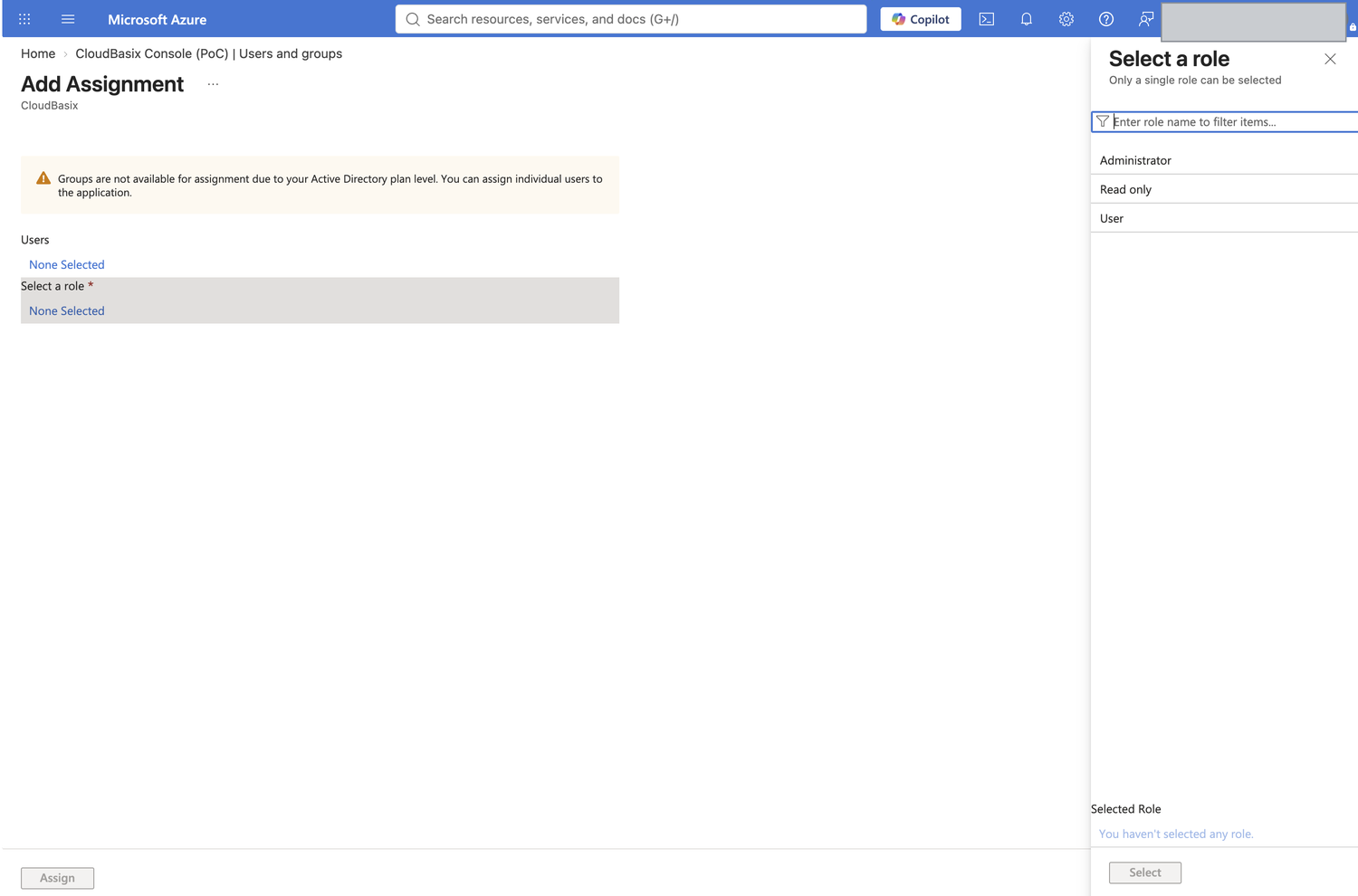
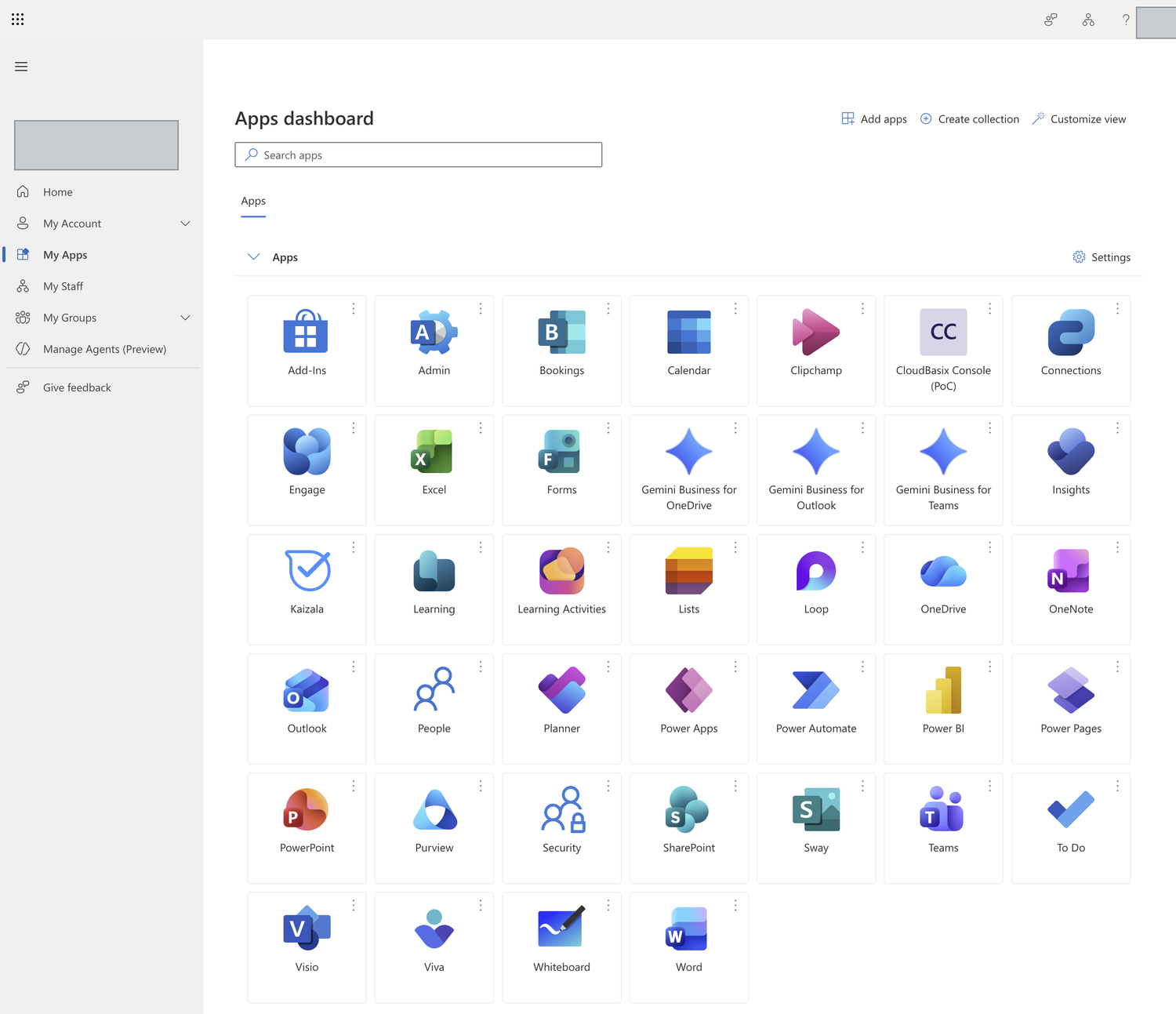
The My Apps tile
With Visible to users = Yes the console appears in each assigned user’s My Apps portal. Selecting the tile opens the console and signs them in silently, because the browser already holds an Entra session.
7Configure this instance
Provide three values in appsettings.json under AzureAd (the section ships empty),
or as environment variables:
"AzureAd": {
  "Instance": "https://login.microsoftonline.com",
  "TenantId": "<Directory (tenant) ID>",
  "ClientId": "<Application (client) ID>",
  "ClientSecret": "<the secret Value from step 4>"
}
AzureAd__TenantId=<Directory (tenant) ID>
AzureAd__ClientId=<Application (client) ID>
AzureAd__ClientSecret=<the secret Value from step 4>
Copy the environment variable namesRecycle the console’s IIS application pool (or restart the site). The sign-in page’s Sign in with Microsoft button appears once both the tenant and client IDs are present.
Multiple instances or an extra proxy
- This console runs in-process under IIS and reads the request scheme natively — no
X-Forwarded-Protosetup is needed unless an additional TLS-terminating proxy is placed in front. - Running more than one instance behind one address? The Data Protection key ring must be shared (file share or equivalent). The OIDC correlation and nonce cookies are encrypted with it; unshared keys cause intermittent “Correlation failed” errors that look like an Entra fault but are not.
8Verify
- Open the sign-in page and choose Sign in with Microsoft.
- Approve the consent prompt on first use. It requests
openid profile emailonly — no mail, files, or directory access. - You should land on the console as the console user named after your UPN, with that user’s permissions.
Open
/console/Account/Whoamito see the mapping: the console user, the sign-in source, and the Microsoft account’s UPN /oid/tid. - Sign in with an assigned Microsoft account that has no console user of that username: the console must refuse it and name the exact username an administrator needs to create.
- Remove an account’s assignment in Entra (step 6): with “assignment required” on, Microsoft must refuse the sign-in before the console is ever reached.
- Sign out: the console session ends and the browser round-trips Microsoft’s sign-out page.
?Troubleshooting
| Symptom | Cause and fix |
|---|---|
AADSTS700016application not found in the directory |
The client ID is wrong — usually a transcription error. Verify it is 8-4-4-4-12 hex characters and matches the Overview page exactly. |
AADSTS50011redirect URI mismatch |
The registered URI differs from the one sent. Compare against the exact value in step 2, including scheme, port and trailing slash. |
AADSTS650057 / invalid resource |
Redirect URI registered under the wrong platform. It must be Web, not SPA or Public client. |
| “Correlation failed” / “state missing” | Cookies blocked, or multiple instances without a shared Data Protection key ring. See step 7. |
| Signed in with Microsoft, but refused by the console | Working as designed: no active console user is named after the account’s UPN. Create or activate a console user whose username equals the UPN shown in the refusal message (copy it exactly), then try again. |
| Token exchange times out | Outbound 443 to login.microsoftonline.com is blocked. See section 0. |
Username/password access
Local console sign-in remains available alongside Entra — the console stays reachable when Entra is unreachable or before it is configured. Local and Microsoft sign-ins land on the same console user and the same permissions.